Experience Level Agreements (XLAs) in Thread — Setup Guide

Traditional Service Level Agreements (SLAs) are contracts written for the worst case: a rigid clock that exists mainly to prove you didn't miss a deadline. Thread's Experience Level Agreements (XLAs) start from a different question — not "did we technically meet the contract," but "did the customer have a good experience getting help." The same response/resolution timers, business-hours logic, and priority targets that make an SLA enforceable are still there under the hood, but they're pointed at a different goal: giving your team an early, honest read on how an experience is trending — Breached, High risk, Moderate risk, Low risk — so agents can act before a customer feels the miss, not just get scored on it after the fact.
1. Before you start: turn on Business Hours
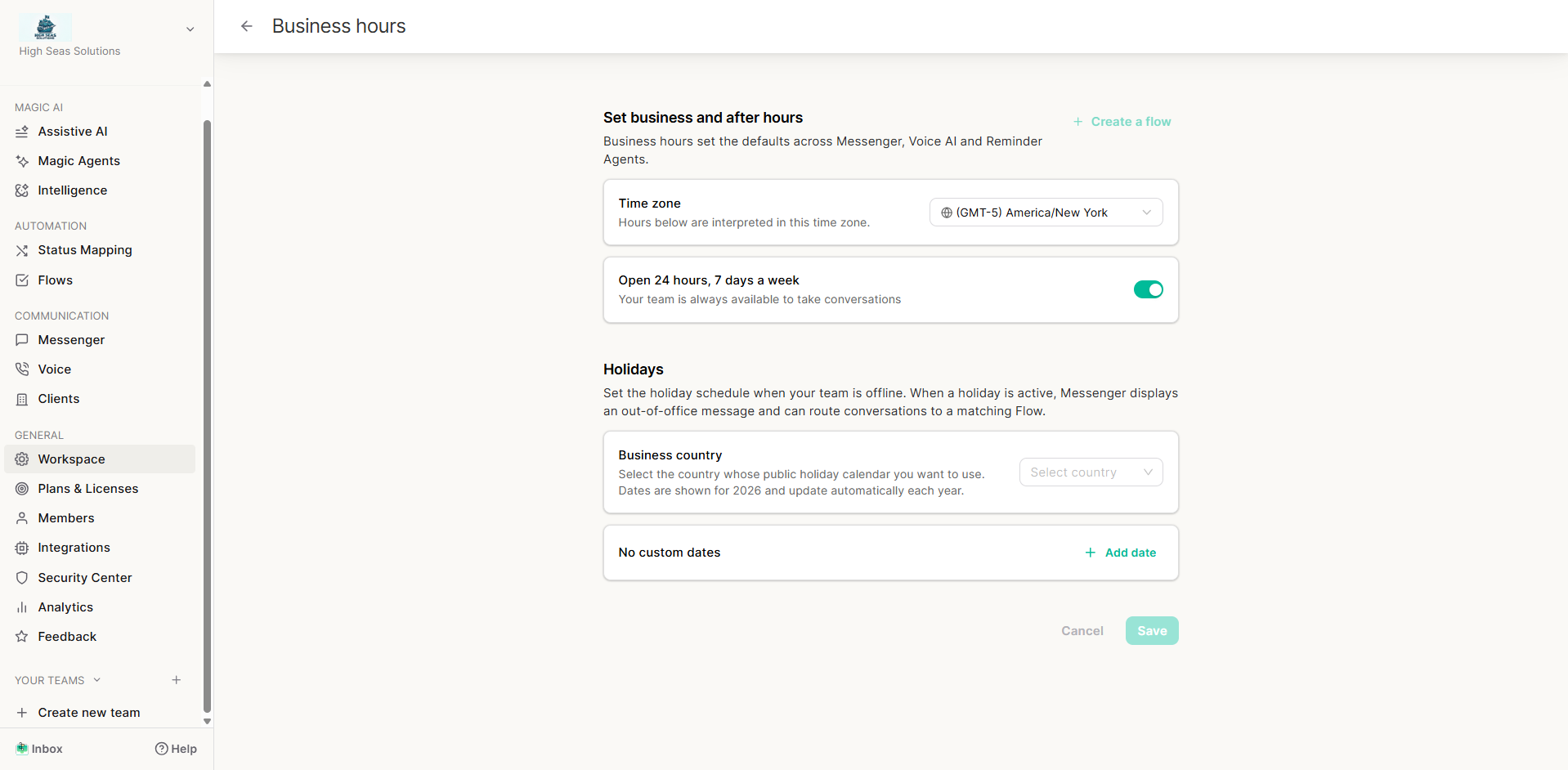
XLA profiles run their response/resolution clock in one of two modes, chosen per profile:
Setting | What it means |
During Business Hours Only | The response/resolution clock only counts time during business hours — it pauses accrual outside the window and resumes when the window reopens. |
24/7 - All Hours | The clock runs continuously, real time, no matter when it is. |
If you plan to use "During Business Hours Only" on any profile, you need Business Hours configured first (Workspace Settings → Business Hours). Business hours can be set workspace-wide, per team, or per client — the most specific one wins. If a company has no business hours configured and you try to save an XLA profile that depends on them, Thread will block the save with an error rather than let it silently misbehave. Holidays and custom closures (if you use the Company Holidays feature) are respected automatically — they count as fully closed days against the clock, so the experience target stays realistic instead of quietly punishing your team over a holiday. (A profile set to "24/7 - All Hours" never looks at business hours or holidays at all — it's pure wall-clock time.)
2. Setting up XLA Profiles
XLA profiles live under Admin → XLAs. Each profile bundles four things: who it applies to, which clock it runs on, how long each priority gets before the experience starts to degrade (optionally broken down by source — see Section 3), and which ticket statuses start/stop/pause the clock.
2.1 Creating a profile
Click Create XLA and you'll land on the profile editor:
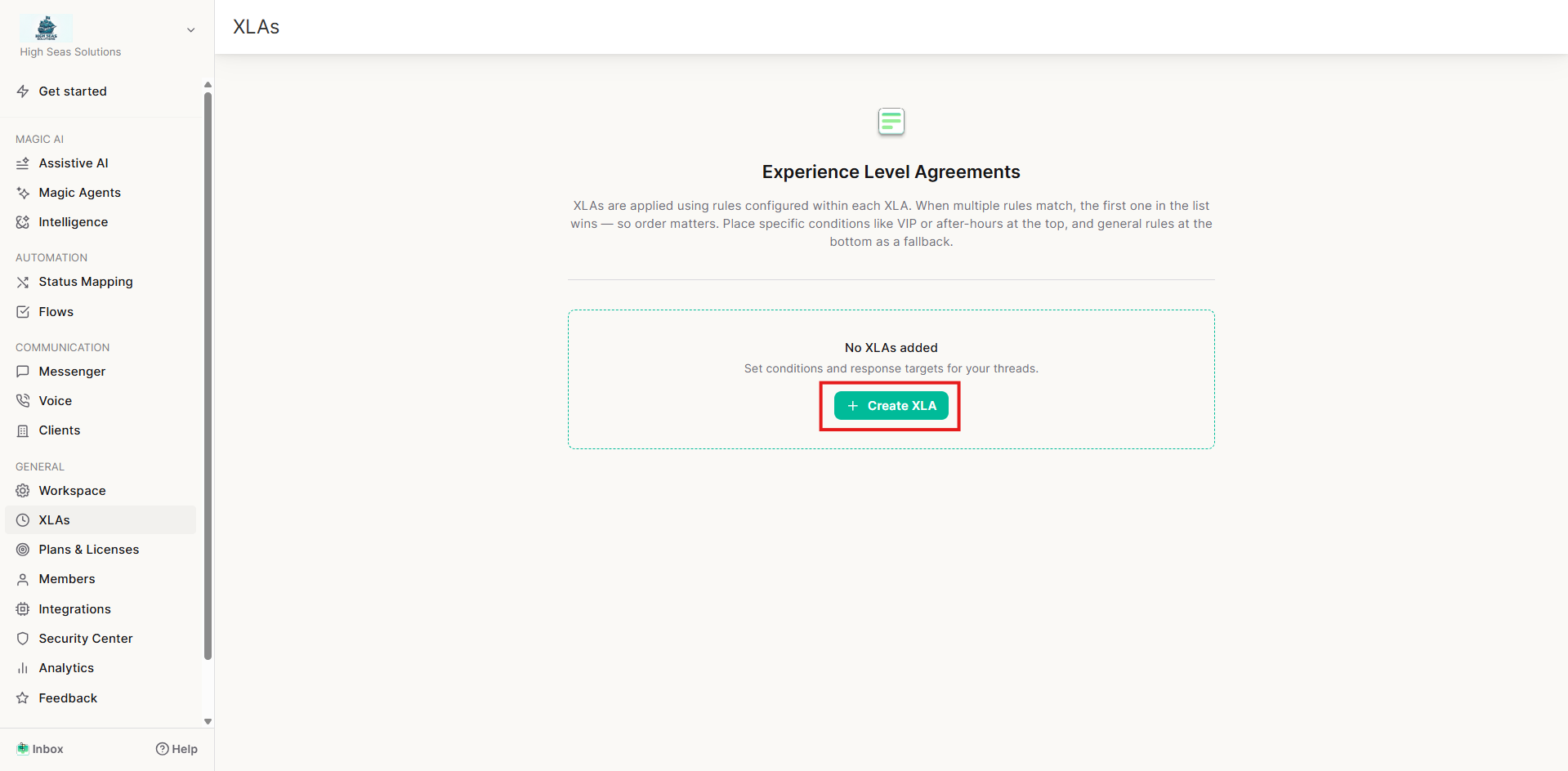
- Name — an internal label for the profile. Consider naming it around the experience you're protecting (e.g. "VIP — fast lane") rather than just a contract tier.
- When should this XLA apply? — a set of conditions: agreement, agreement type, board, company, company type, contact, contact type, or location. A ticket must match all the conditions you add. Leave it empty and the profile matches every ticket. Which conditions you're offered depends on your PSA — HaloPSA hides company type, contact type, and location; AutoTask hides agreement and contact type, since those fields don't sync cleanly from those platforms. Thread will block saving a profile whose conditions and business-hours setting exactly duplicate an existing profile's, since a ticket can only ever match one XLA.
- When should your XLA Timers Run? — "During Business Hours Only" or "24/7 - All Hours" (see Section 1).
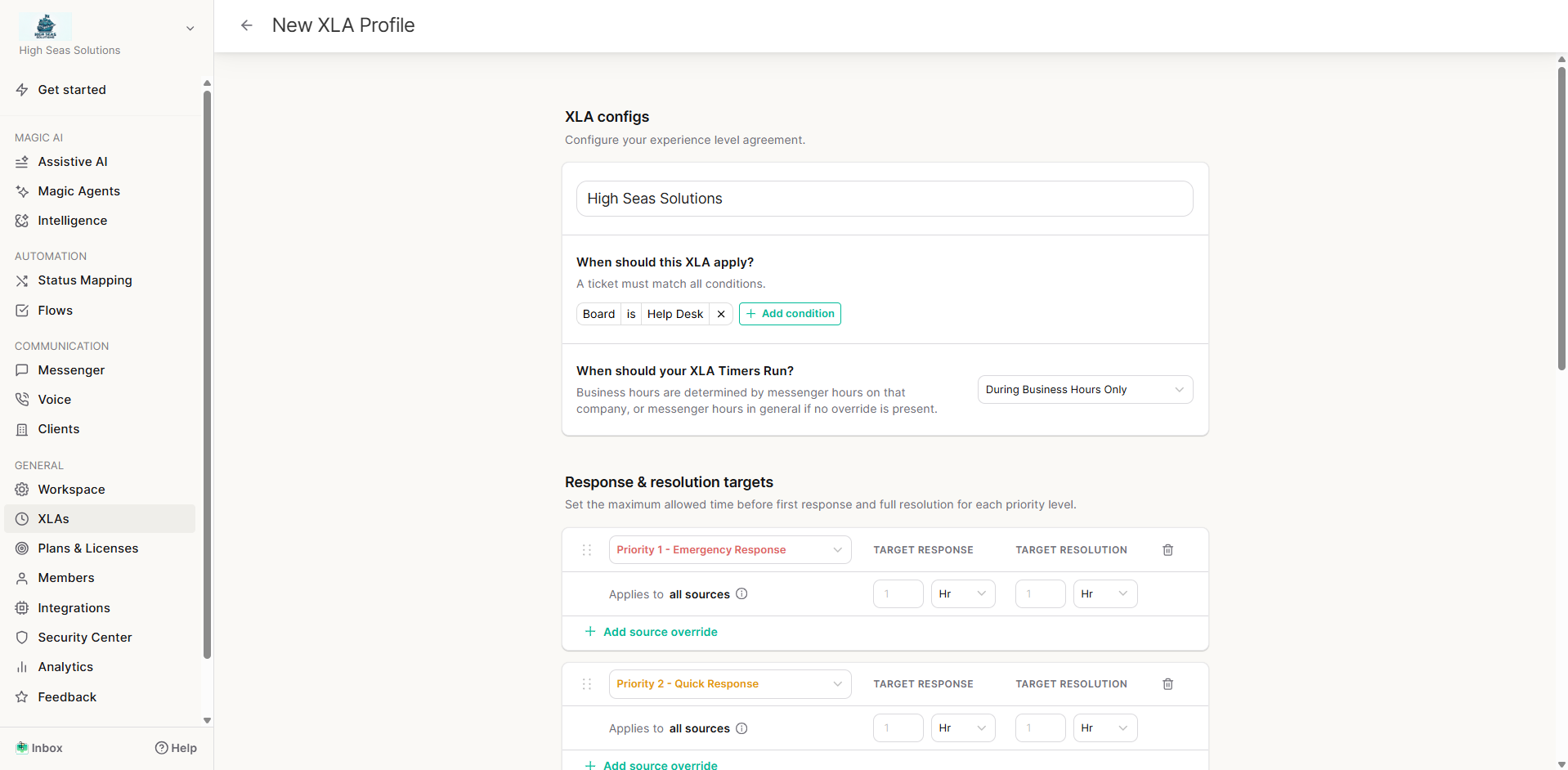
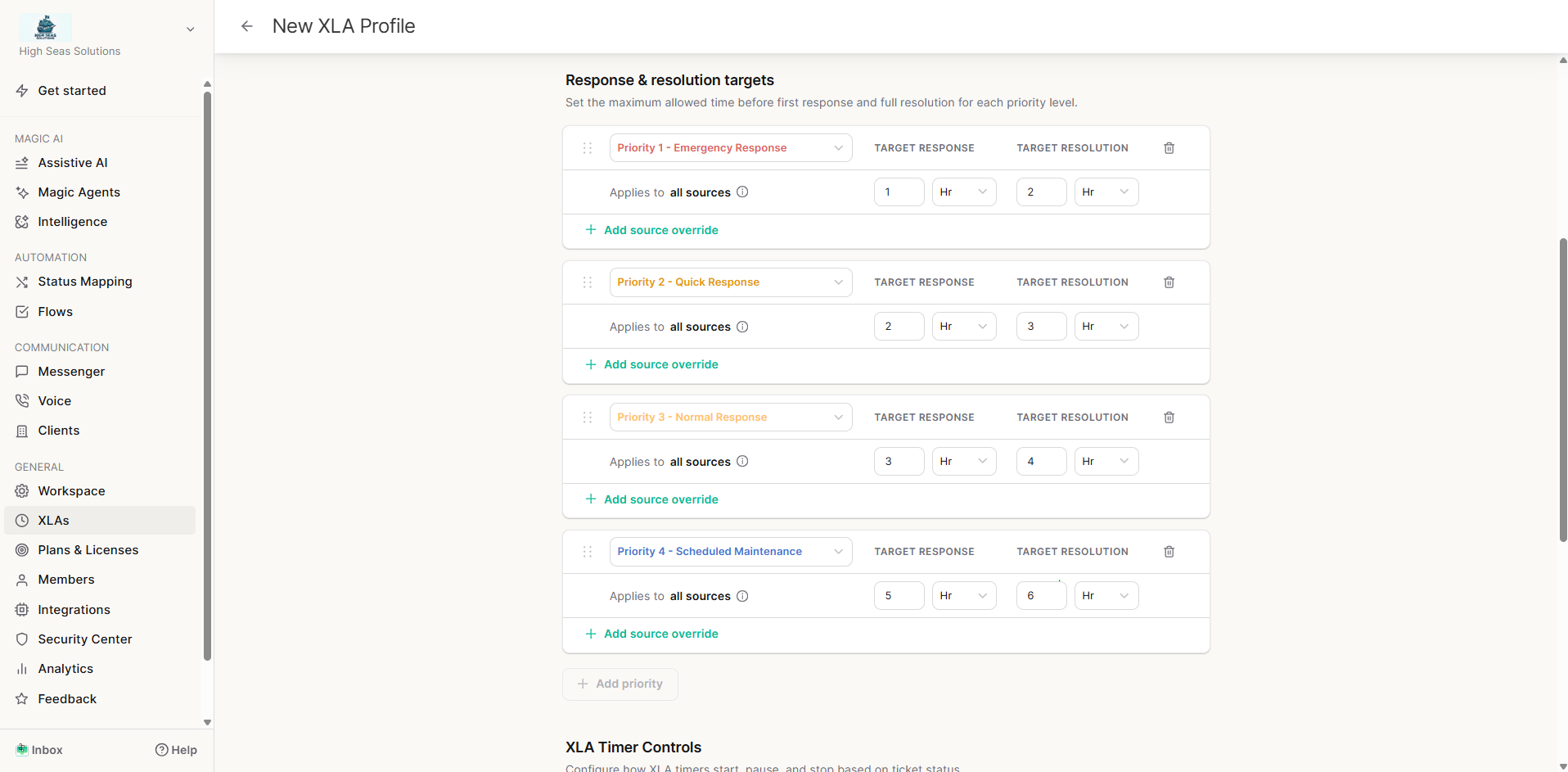
- Response & resolution targets — one card per priority level, each with a target response time and target resolution time (in minutes, hours, or days). Think of these less as contractual deadlines and more as "how long before this experience starts feeling slow to the customer." Resolution time must always be longer than response time on the same card.
2.2 Timer controls
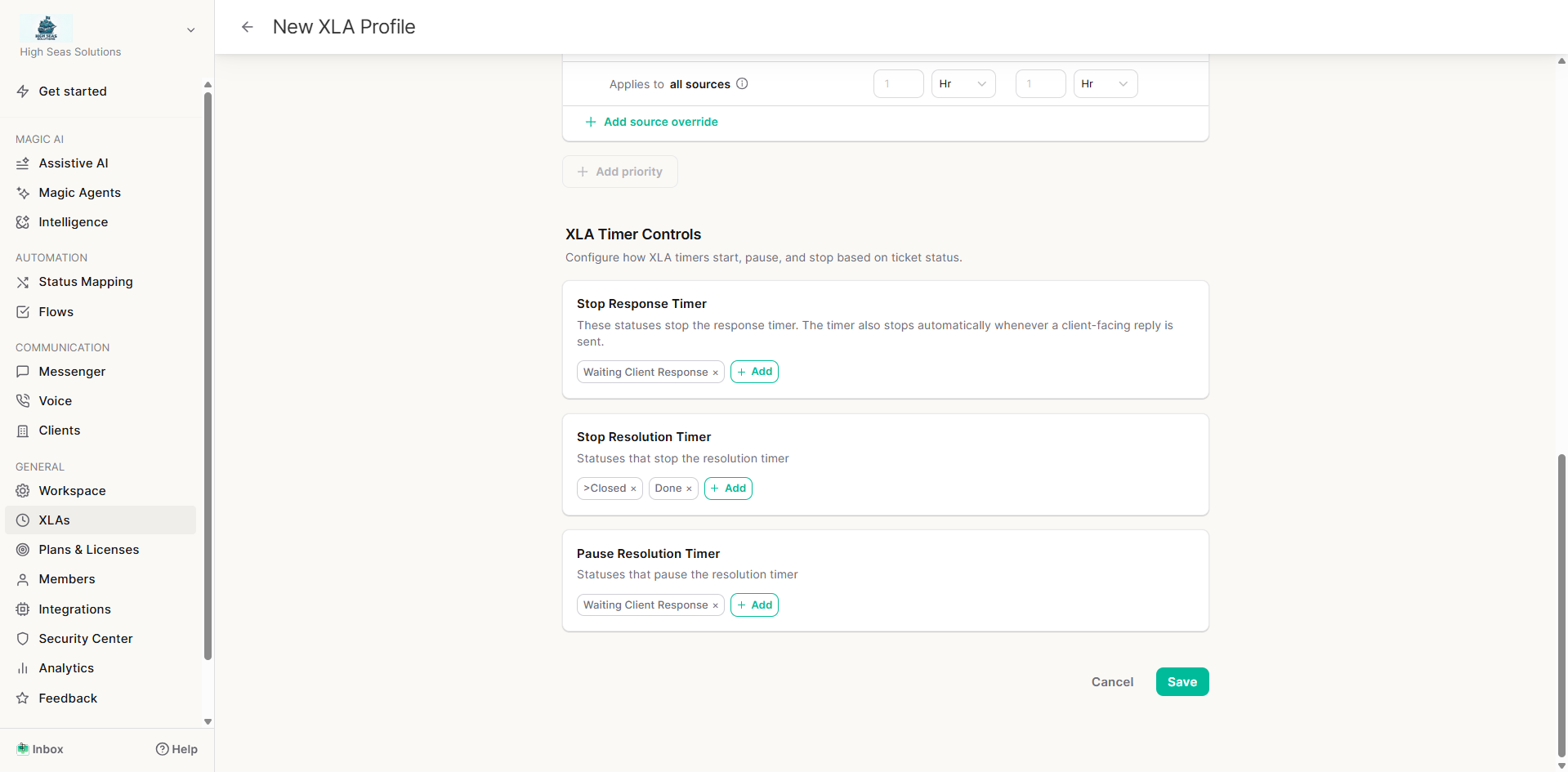
Below the targets, each profile has three status-mapping sections that control the clock:
- Stop Response Timer — statuses that stop the response timer for good. (The response timer also stops automatically the moment a client-facing reply is sent — you don't need to add a status for that. The moment a human responds, the experience has already improved, so the clock reflects that immediately.)
- Stop Resolution Timer — statuses that stop the resolution timer (typically your "Done"/"Closed" statuses). You must add at least one.
- Pause Resolution Timer — statuses that pause (and later resume) the resolution timer without ending it — e.g. "Waiting on Customer." Pausing here matters for XLA in particular: a customer who's gone quiet isn't having a bad experience because of you, so the clock shouldn't count that time against the team. You must add at least one.
A few behaviors worth knowing about:
- If a ticket enters a stop-response status, response time is done — even reopening the ticket only restarts response fresh, it doesn't touch resolution.
- If the AI Triage agent is actively working a conversation, both timers pause automatically while it's engaged — no configuration needed, this is universal. The customer is being helped, so the clock doesn't need to "protect" them from anything.
- If a ticket reopens after being marked Done, resolution resumes from where it left off (the closed period doesn't count against you); response starts over, capped so it can never end up later than the resolution deadline.
- A stop always wins over a pause if both would otherwise apply.
2.2 Profile order matters
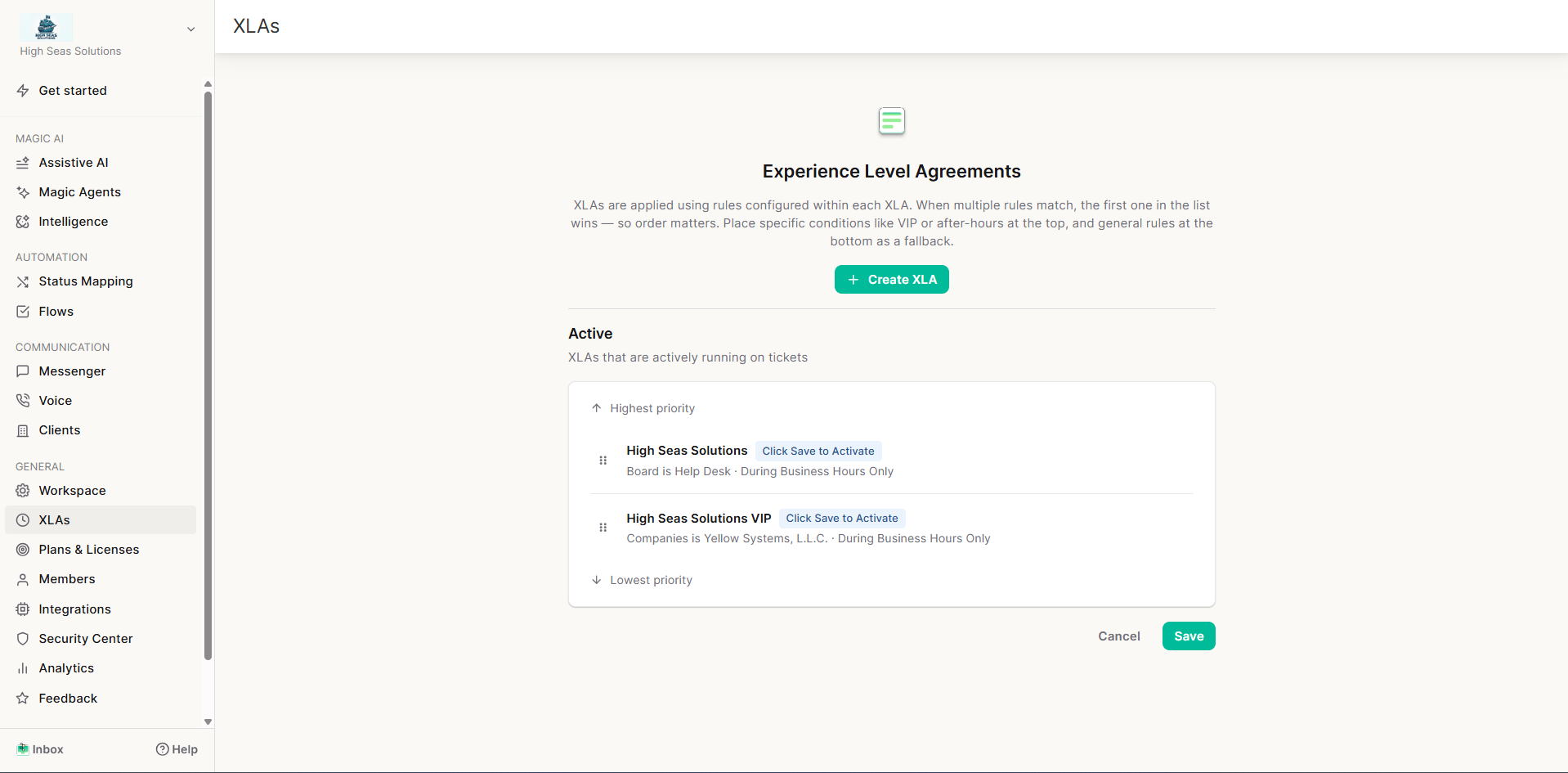
· The XLAs list page shows every profile ranked top to bottom. When a ticket could match more than one profile, the first match in the list wins — so put narrow, specific rules (VIP clients, a specific board) above your general fallback rule. Drag rows to reorder; the list clearly marks the highest- and lowest-priority ends, and changing the order flags itself so you don't forget to click Save (reordering recalculates every affected ticket's timers).
2.3 Saving, editing, and validation
Changes across the whole XLA list (reordering, edits, deletes) are staged as a draft and applied together when you hit Save on the list page — so you can rearrange or edit several profiles and commit them in one action. In the profile editor itself, Save just stages your changes back to that draft; you'll see a confirmation of how many targets are ready, and any non-blocking warnings (e.g. an incomplete source override) as a toast — the actual commit happens from the list page. Before staging, Thread checks that: the profile has a name, its conditions don't exactly duplicate another profile's, the priority/source matrix has no blocking errors, and at least one status is set in both the Stop Resolution and Pause Resolution sections. Saving a profile change recalculates due dates for every open ticket it affects; for very large ticket volumes on a board, Thread will ask you to narrow the profile's board scope rather than risk a slow save.
3. Source-based overrides
You can now give a priority a different response/resolution target depending on which source the ticket came in on (e.g., a tighter target for phone-sourced tickets than for a low-priority email at the same nominal priority) — a phone call and an email aren't the same experience even when they're triaged the same.
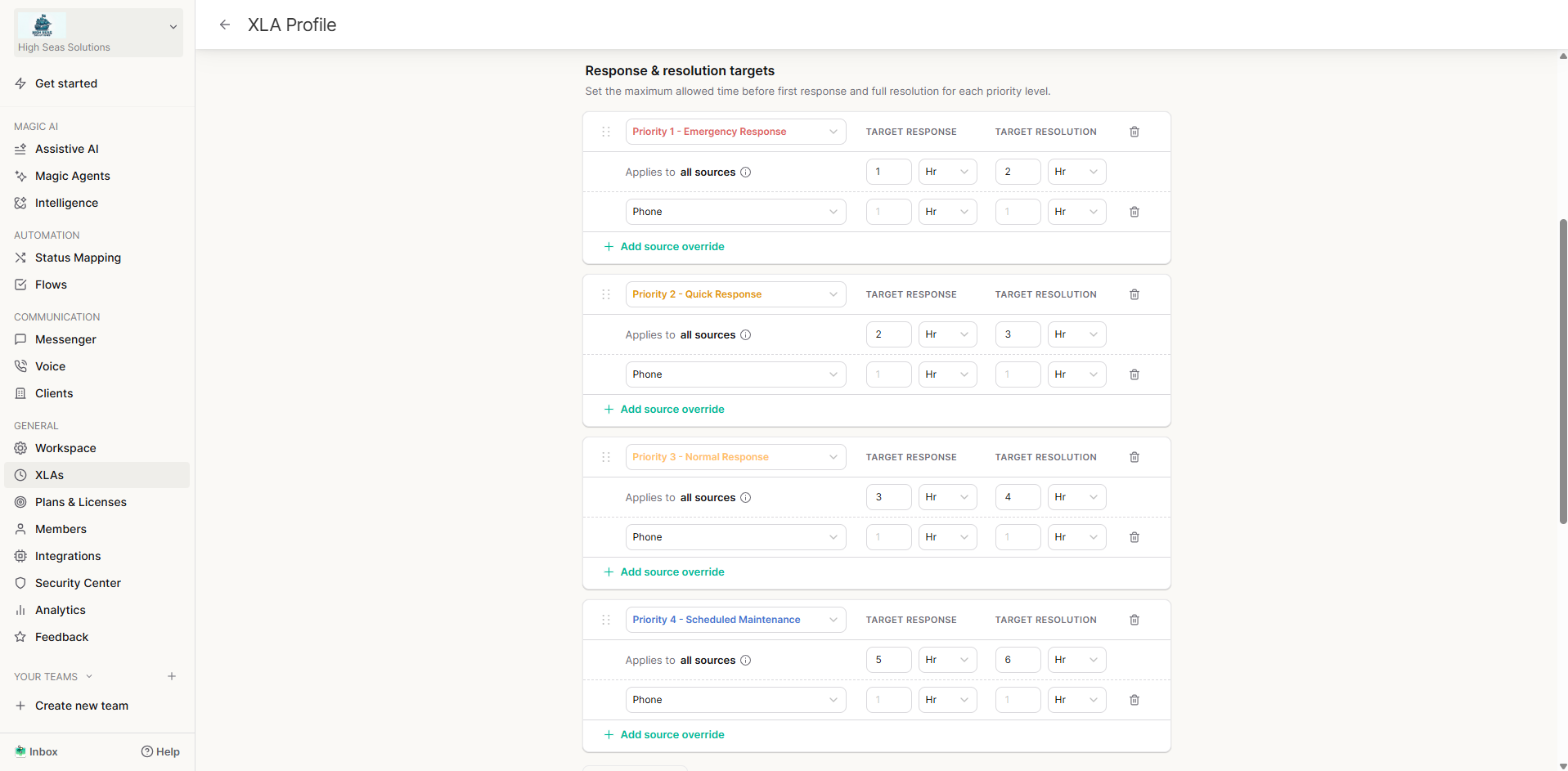
With it turned on, each priority in Section 2.1 gets its own card with:
- A default response/resolution target that applies to all sources — this is the fallback for any source you haven't specifically overridden.
- An Add override control to pick one of your ticket sources (these are the sources synced from your PSA — e.g. email, phone, portal) and give it its own response/resolution target. A given source can only be overridden once per priority — once you've added it, it drops out of the picker for that priority (but stays pickable for other priorities). Removing an override just falls back that source to the priority's all-sources default.
Behind the scenes, an exact (priority, source) override always wins over the priority's any-source default when Thread matches a ticket — so the most specific timing always applies.
4. How XLAs show up in the inbox
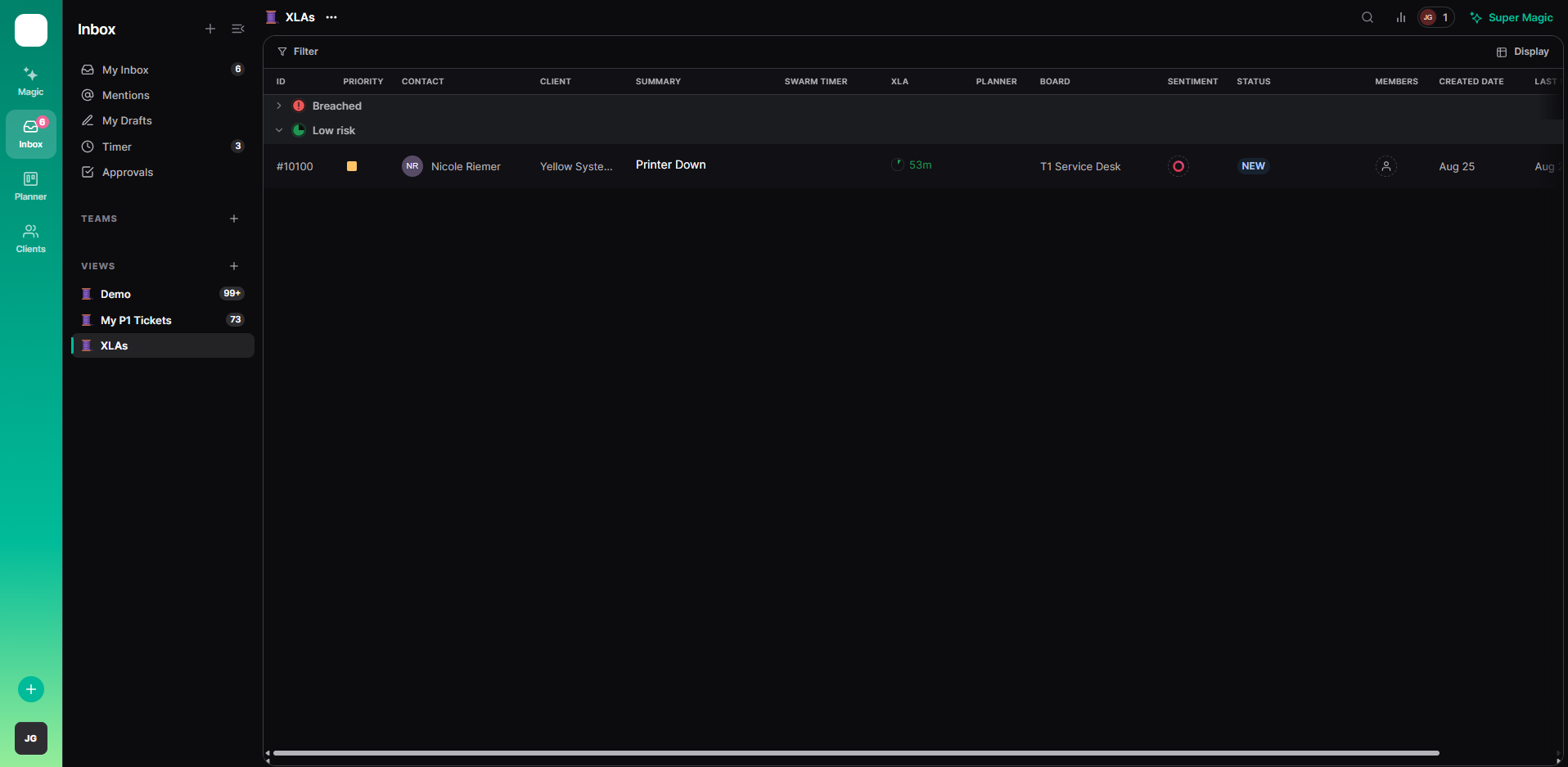
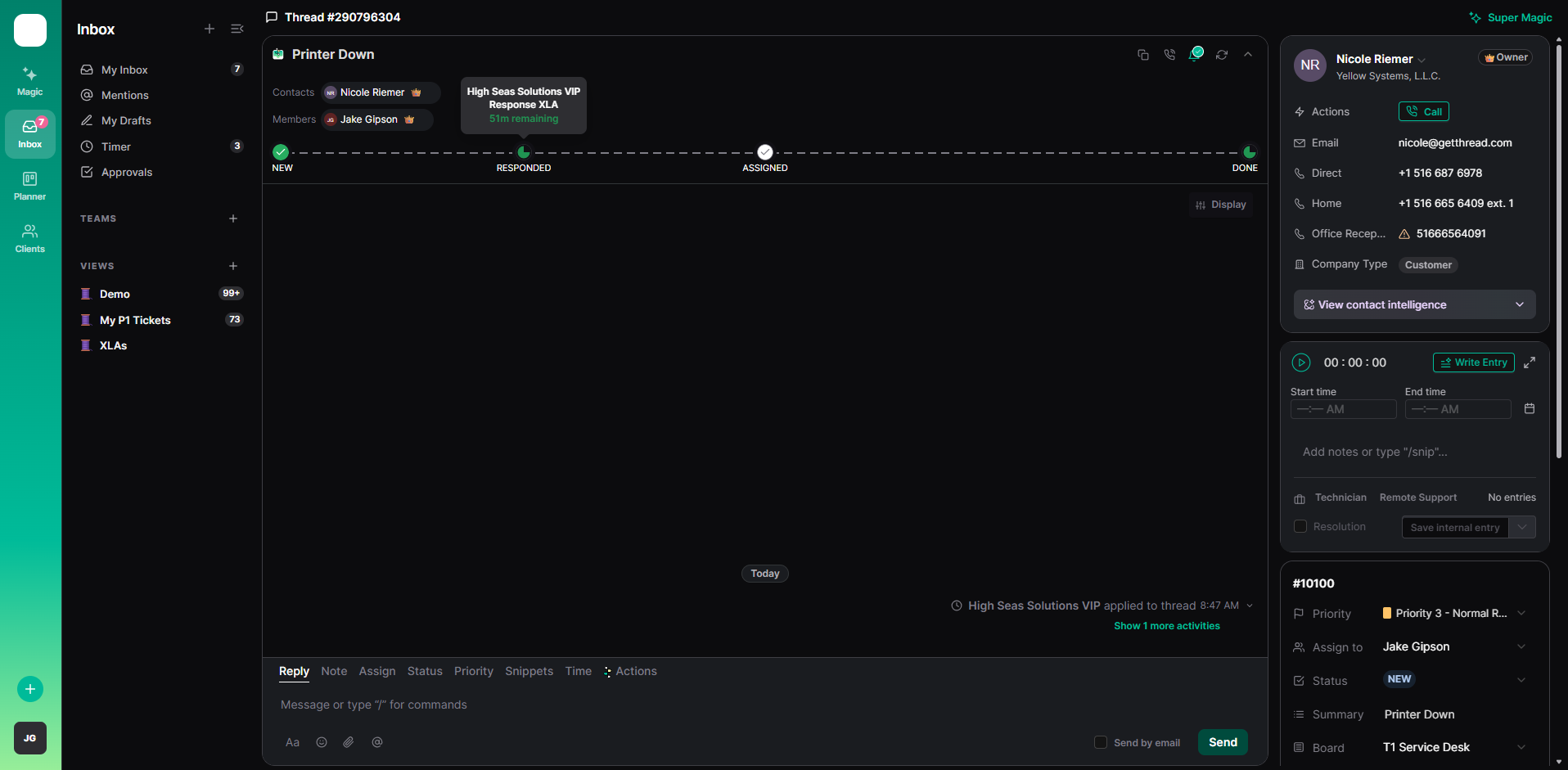
This is where the philosophy actually pays off: instead of a pass/fail contract check that only matters at the deadline, agents get a continuously-updating read on experience health, visible everywhere they already work. Once the feature is turned on for a workspace, agents see it in two places on any ticket list that's in List display mode:
- A countdown column — a live, ticking countdown to the next due date (response or resolution, whichever is active), refreshed roughly every 30 seconds and business-hours-aware, so "3h left" means three business hours, not three wall-clock hours.
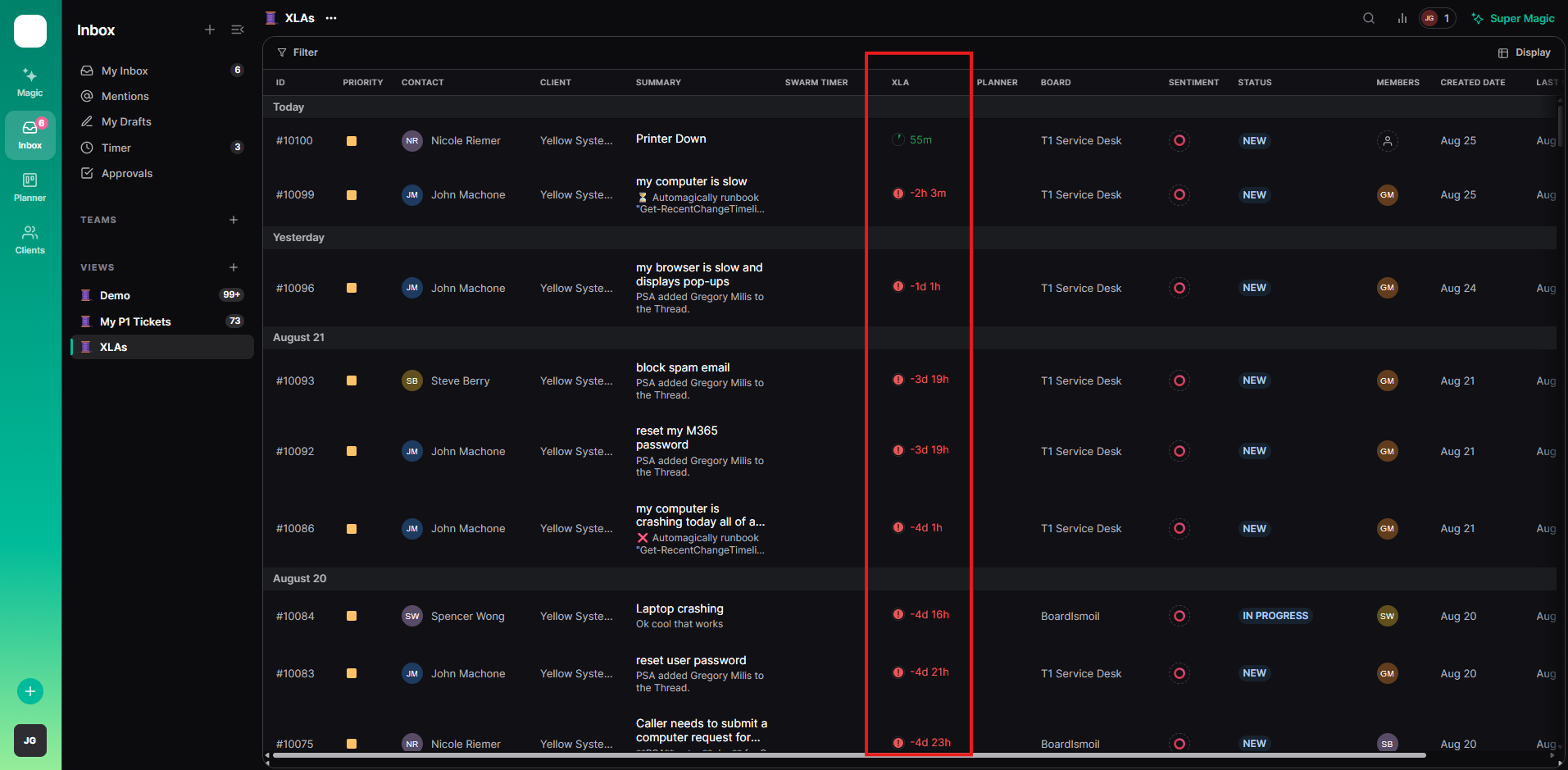
- Grouping by XLA — in the view's Display menu, the "Grouping" option offers Date (the default) or XLA. Grouping this way buckets tickets by experience health rather than by contract status: Breached, High risk, Moderate risk, Low risk, Resolved, and No XLA. The risk thresholds sit at the halfway and three-quarter marks of the target window — well before a breach — so an agent can see a ticket sliding toward "High risk" and step in while there's still time to make the experience good, instead of finding out only once it's already failed. Groups re-bucket live as thresholds are crossed, without needing a page refresh. This grouping is only offered while in List mode — switching to chat/inbox mode falls back to date grouping automatically.
5. Flows automation
Flows can now react to XLAs directly. When creating a Flow, a new trigger is available: "A Thread XLA is running out of time." Configuring it looks like this:
- Pick the channel the Flow should post into, same as any other Flow.
- Set a percent-remaining threshold for the response timer, the resolution timer, or both (e.g., "fire when 20% of the response target time is left"). You can gate on either or both independently.
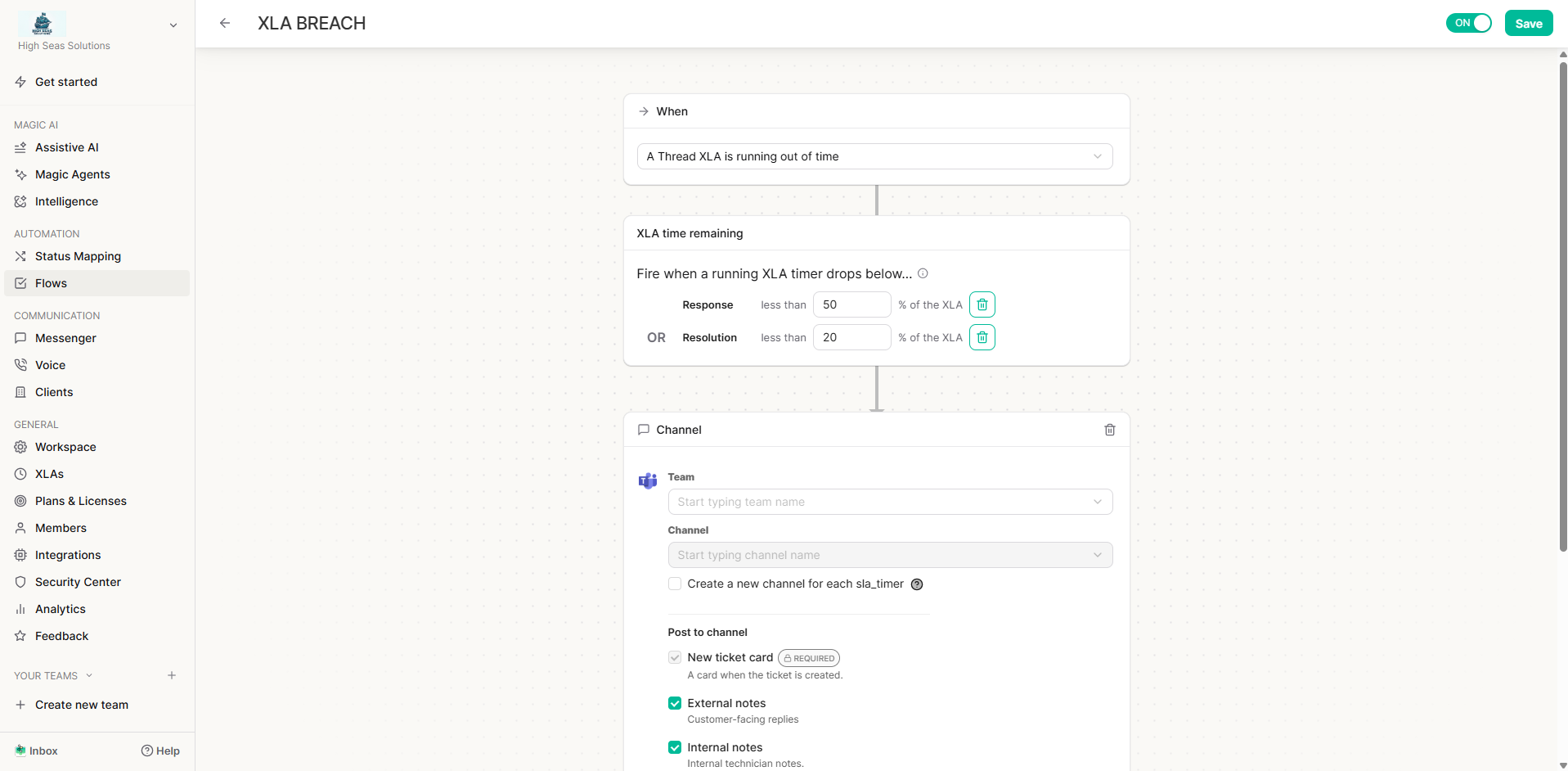
- A workspace can have up to 10 XLA flows at a time — it's an accident guard, not a real capacity limit, but you'll need to delete one before adding an eleventh.
When a ticket's timer crosses a threshold, Thread posts a warning (⚠️ "the response XLA for ticket #1234 is below 20% of its 4h target") into the flow's configured Slack or Teams channel, and subscribes/posts the ticket card there the same way any other Flow action would — so it shows up exactly like a ticket routed there any other way.
A couple of things worth knowing about how it behaves:
- It checks roughly every 5 minutes, so a fire can land a few minutes on either side of the exact threshold — it's a near-real-time alert, not a precise one.
- Each threshold only ever fires once per ticket timer. Turning on a new XLA flow does not flood you with alerts for every ticket that's already past the threshold — it "arms" first (silently marking anything already past the line as handled) and only starts firing on tickets that cross the line after that.
- It respects the same business-hours math as the rest of the timer — a business-hours profile's "20% remaining" is 20% of business time, not wall-clock time.
- Source overrides (Section 3) are respected too — the alert is calculated against whichever target (all-sources default or a specific source override) actually applies to that ticket.
6. Known limitations
- Ticket volume bound: a profile save whose recalculation would scan more than 7,500 open tickets can't save synchronously — Thread will ask you to narrow the profile's board scope instead. This is a safety limit to keep saves fast, not a real ceiling on how many tickets an XLA can cover.
- XLA Flows cap: 10 XLA-triggered flows per workspace, and the check runs on a ~5 minute cycle rather than instantly.
